
Restoring OBS to Default Settings
1.
If you have accidentally deleted or modified your template and want to reset it to the default settings, or need to download, import, and activate templates in OBS, please follow these instructions to remove the existing template and import a new one.
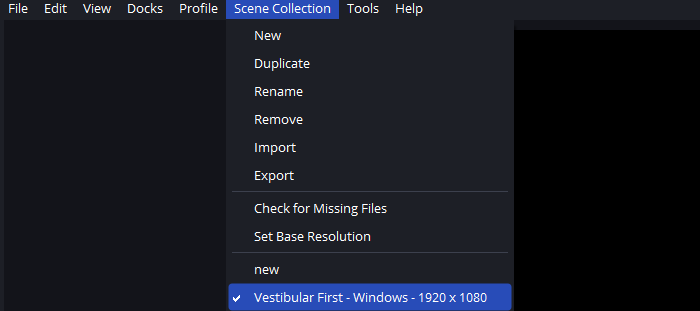
Left-click on Scene Collection at the top of OBS.
Select the Vestibular First scene collection marked with a small white checkmark
Left-Click Remove
Note: Skip to step 2D if you already have the Vestibular first template downloaded
A. Template Generator
On the left, fill in your computer’s screen resolution, for Horizontal and Vertical, and select its Platform.
Click the blue DOWNLOAD TEMPLATE button on the left.
Note: Do not run the JSON template file. It will need to be loaded into OBS program in Part 4 below. If your computer is asking which program to run the file, please hit ESC to close the window and proceed to Part 4.
Note: If you do not remember your computer’s resolution, click here and follow the steps to find it.
Note: If you are unable to download a template from the Template Generator, contact us.
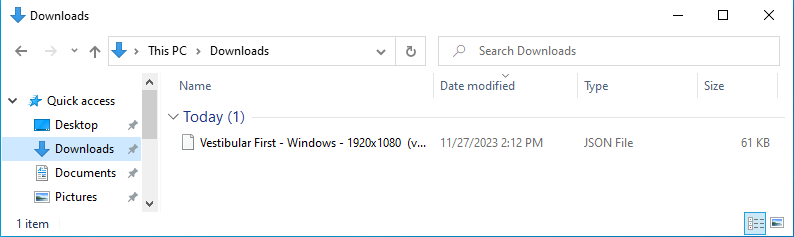
B. Save File
Save this file to your downloads folder or a known location. You will need to know its location for the next step 🙂.
2.

A. Open OBS
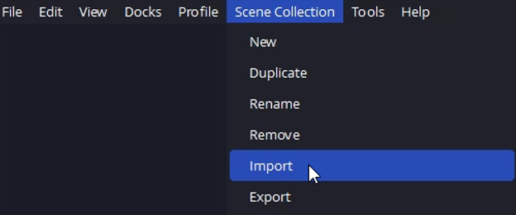
B. Scene Collection
In OBS’s menu bar in the upper left, click on Scene Collection, then click on Import.
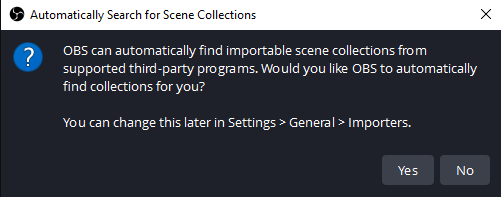
C. Automatically Search for Scene Collections
Note: If the Automatically Search for Scene Collections window does not pop up you can just continue to the next step.
For most, this window will only open the first time you import a template in OBS.
If you see this window, click No.
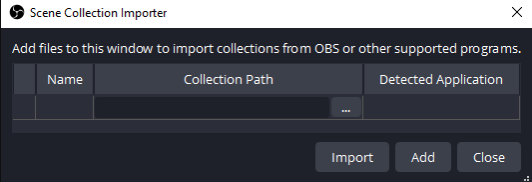
D. Scene Collection Importer
In the Scene Collection Importer window, click on Add.
Note: On newer versions of OBS, you will need to click on Browse.
This will open a window with your local file system.
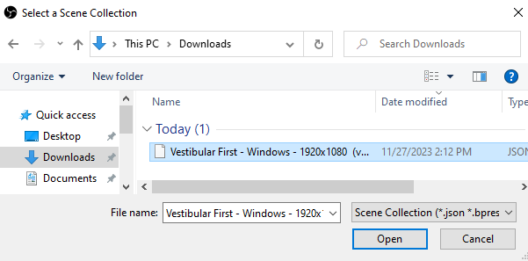
E. Browse for Template
In your local file system, browse for the file you downloaded in the Download Template section.
Once you find the file, click it once to highlight it, then click Open.
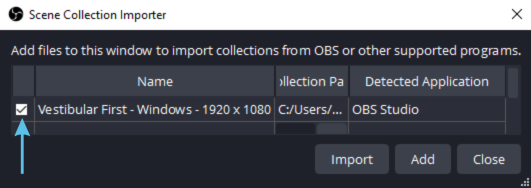
F. Import
You should now see the file in the Scene Collection Importer window.
Make sure the check box on the left side has a check mark.
Click Import.
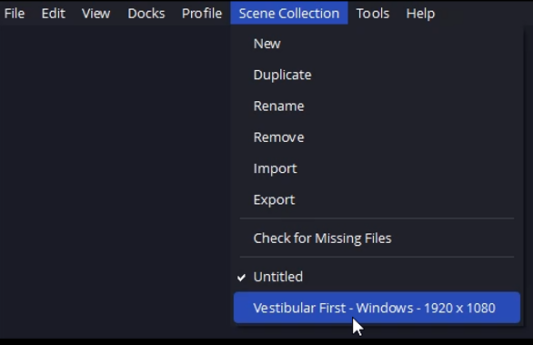
G. Activate Scene Collection
Click on Scene Collection in the top menu bar.
You should now see the imported template at the bottom of the drop down menu, named Vestibular First… followed by your screen resolution. Eg. Vestibular First 1920×1080 as seen in our example.
Click on the imported template name.
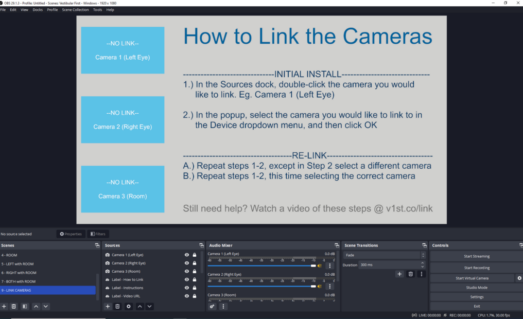
H. You Have Completed Importing and Activating Your Template
Your new imported template will be on scene 9 – LINK CAMERAS automatically.
Once the redownload is complete, you will be required to relink the cameras.