
What to do if you have multiple goggles and 1 computer
If you use multiple goggles with the same computer, creating and exporting separate OBS templates can make switching between setups much easier. Instead of relinking cameras and adjusting settings each time you connect a different goggle, you can load a dedicated template that is already configured for that device.
Open Scene Collection, left‑click the Scene Collection menu at the top of OBS
Duplicate collection, left‑click Duplicate
Confirm correct scene, ensure the scene used for the goggles, usually “Vestibular First – Windows”, has a white checkmark before duplicating
Missing template, if you do not see Vestibular First – Windows, it has likely not been imported
Download template, go to Software Setup and download the template

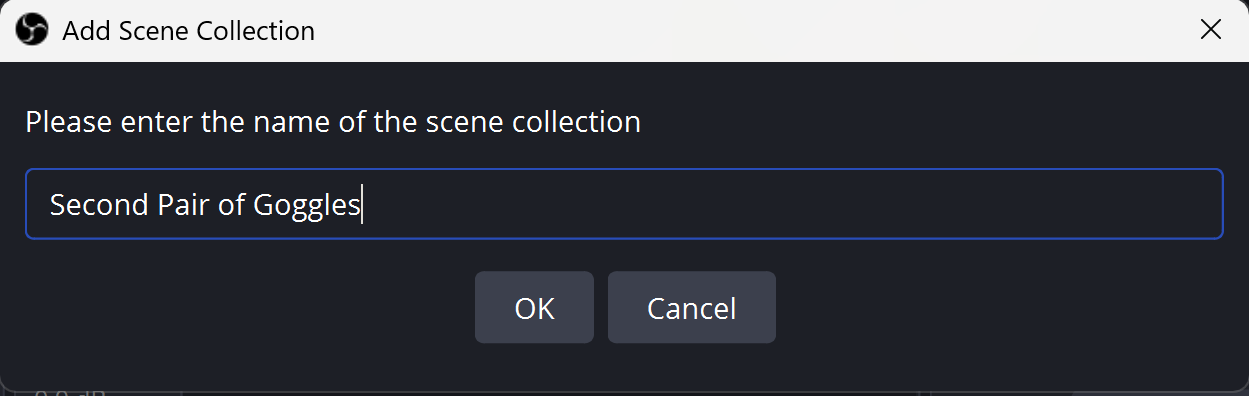
Rename duplicated scene, give the copied scene a name that clearly matches the specific goggles it will be used with
Unique template per goggle, each pair of goggles should have its own uniquely named OBS template
Link cameras, after creating the new scene, connect the correct cameras to it
Select matching scene, always choose the scene that matches the goggles so the correct camera feed appears
Video help, if you need assistance, watch the camera‑linking video on the right
Click here to learn how to export your templates after they have been made. This will allow for easy consistent use across multiple computers.