
Adding Keyboard Shortcuts in OBS
Keyboard shortcuts make it faster and easier to control OBS. This section will briefly show you how to add and customize shortcuts to streamline your workflow.
A. Settings
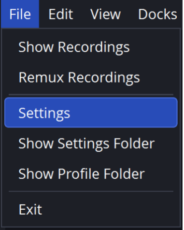
In the top left corner of OBS left click on File. Left click on Settings in the dropdown menu.
B. Hotkeys
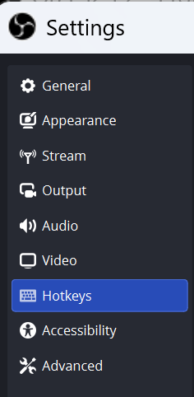
Left click on the Hotkeys section. This will be located on the left side of the pop-up window.
C. Creating Hotkeys
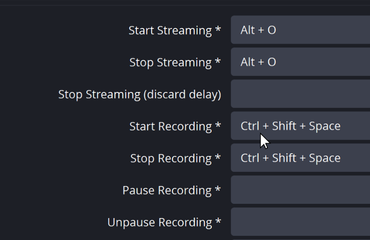
You can create shortcuts for different OBS commands by clicking the boxes next to the command and pressing the desired keys at the same time.
D. Applying Changes
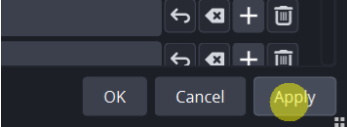
Make sure to select Apply at the bottom right of the window or the settings will not be saved.
Note: These hotkeys (keyboard shortcuts) will still activate even if the application is not on the screen, by default. To prevent accidental recordings you should use more complex hotkeys such as CTRL + SHIFT + SPACE to make sure the hotkeys are not accidentally pressed. If the hotkey is multiple buttons, they all have to be pressed at the same time, not sequentially.