KB – Importing Templates 2

A. Open OBS
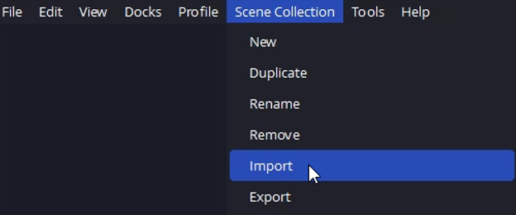
B. Scene Collection
In OBS’s menu bar in the upper left, click on Scene Collection, then click on Import.
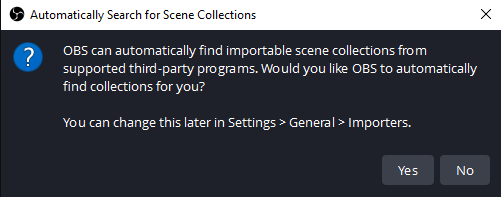
C. Automatically Search for Scene Collections
Note: If the Automatically Search for Scene Collections window does not pop up you can just continue to the next step.
For most, this window will only open the first time you import a template in OBS.
If you see this window, click No.
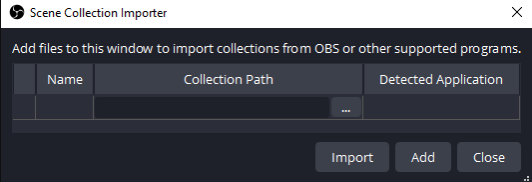
D. Scene Collection Importer
In the Scene Collection Importer window, click on Add.
Note: On newer versions of OBS, you will need to click on Browse.
This will open a window with your local file system.
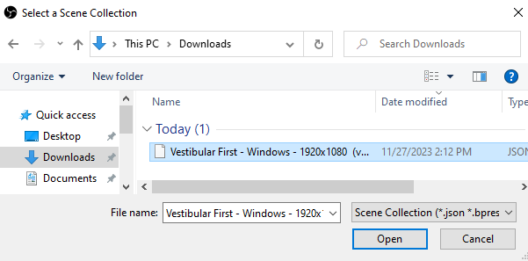
E. Browse for Template
In your local file system, browse for the file you downloaded in the Download Template section.
Once you find the file, click it once to highlight it, then click Open.
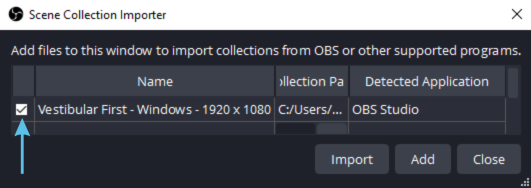
F. Import
You should now see the file in the Scene Collection Importer window.
Make sure the check box on the left side has a check mark.
Click Import.
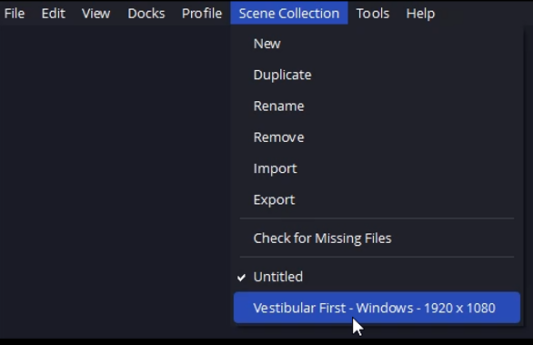
G. Activate Scene Collection
Click on Scene Collection in the top menu bar.
You should now see the imported template at the bottom of the drop down menu, named Vestibular First… followed by your screen resolution. Eg. Vestibular First 1920×1080 as seen in our example.
Click on the imported template name.
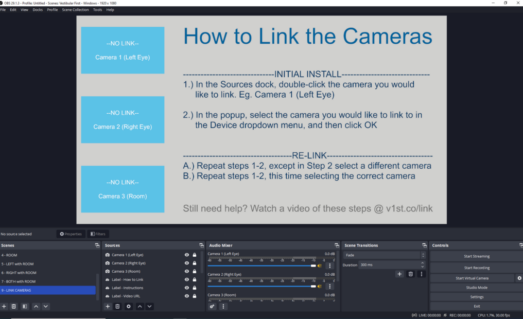
H. You Have Completed Importing and Activating Your Template
Your new imported template will be on scene 9 – LINK CAMERAS automatically.